
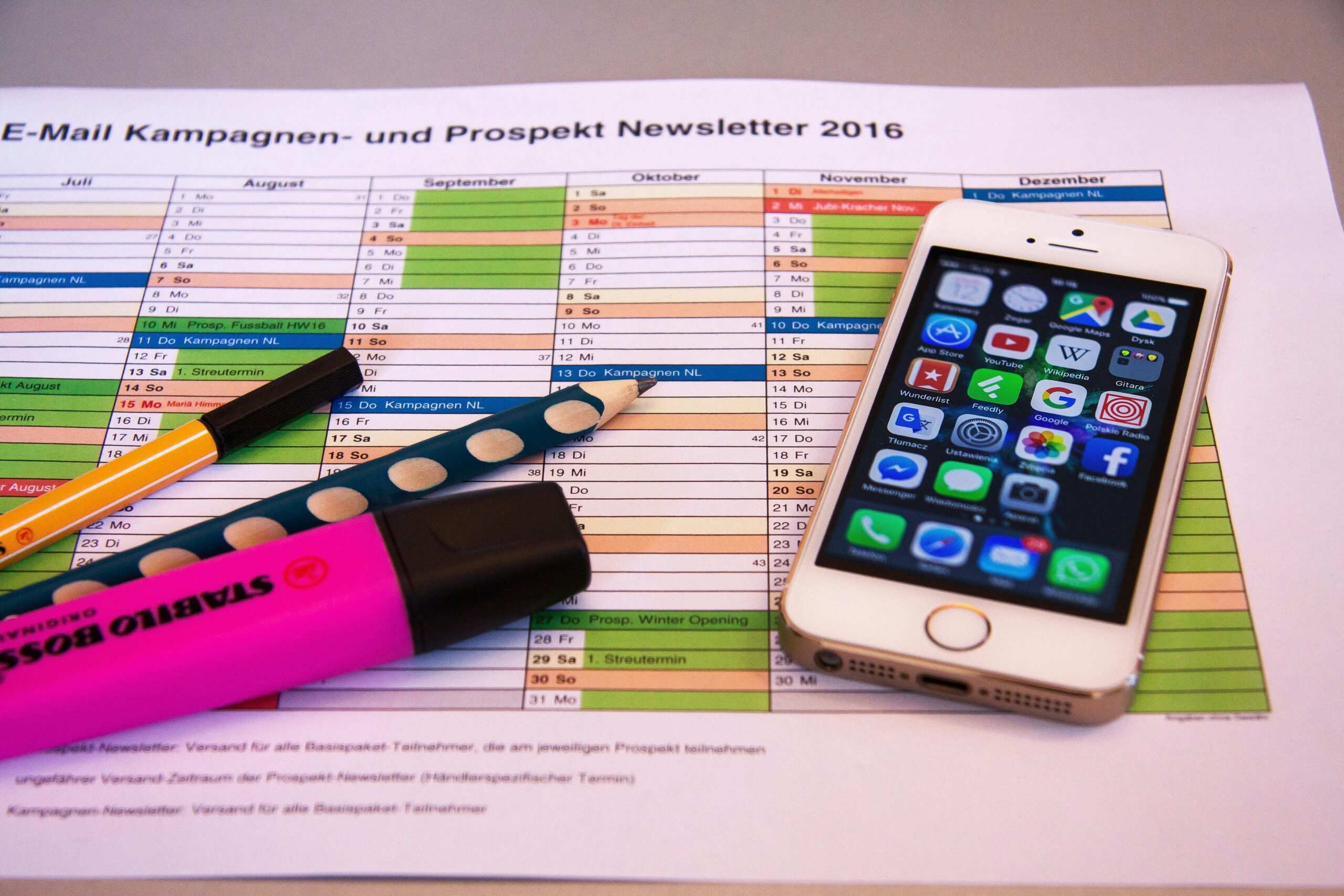
Smartphones in 2025 are more advanced than ever, packed with features that most users rarely explore fully. From hidden settings to shortcuts, knowing mobile tricks and tips can save time, improve productivity, and enhance overall device experience.
This guide shares the top 20 mobile tricks for both Android and iOS users that will simplify daily use and unlock the full potential of your device.
1. Customize Control Center / Quick Settings
Access frequently used features quickly.
Tips:
- iOS: Settings → Control Center → Add shortcuts (Flashlight, Screen Recording, Calculator)
- Android: Swipe down → Edit Quick Settings → Add shortcuts (Battery Saver, NFC, Dark Mode)
Benefit: Access important tools with a single swipe.
2. Use Split-Screen or Multi-Window Mode
Boost multitasking by running two apps simultaneously.
Tips:
- Android: Open recent apps → Tap split-screen icon → Select second app
- iOS: iPad only – Use Slide Over or Split View
Benefit: Improves productivity, especially for work and study.
3. Enable Dark Mode to Save Battery
Dark mode reduces battery consumption on OLED screens.
Tips:
- iOS: Settings → Display & Brightness → Dark
- Android: Settings → Display → Dark Theme → Schedule or Enable
Benefit: Saves battery and reduces eye strain in low-light conditions.
4. Use One-Handed Mode for Large Phones
Eases use of large-screen devices.
Tips:
- iOS: Settings → Accessibility → Reachability → Enable
- Android: Settings → Advanced Features → One-Handed Mode
Benefit: Makes navigation and typing easier with one hand.
5. Use Voice Commands to Save Time
Voice assistants can automate tasks and provide quick access.
Tips:
- Siri (iOS) or Google Assistant (Android)
- Commands: Send messages, set reminders, search online, control smart home devices
Benefit: Hands-free operation improves efficiency and accessibility.
6. Customize Notifications and Priority Alerts
Avoid distraction and focus on important notifications.
Tips:
- iOS: Settings → Notifications → Customize per app
- Android: Settings → Notifications → Priority Mode or App-Specific Alerts
Benefit: Reduces unnecessary interruptions and improves productivity.
7. Use App Shortcuts and Widgets
Quickly access apps or features from home screen.
Tips:
- iOS: Long-press app → Shortcut menu
- Android: Long-press app → Add Widget or Shortcut
Benefit: Saves time and reduces steps for frequent tasks.
8. Enable Dark Mode Scheduling
Automatically switch between light and dark modes.
Tips:
- iOS: Settings → Display & Brightness → Automatic → Sunset to Sunrise
- Android: Settings → Display → Dark Theme → Schedule
Benefit: Reduces eye strain and optimizes battery usage based on time of day.
9. Use Smart Replies and Text Shortcuts
Speed up communication with automated responses.
Tips:
- iOS: Settings → General → Keyboard → Text Replacement → Add shortcuts
- Android: Settings → System → Languages & Input → Personal Dictionary
Example: “omw” → “On my way!”
Benefit: Saves time typing frequently used phrases.
10. Use Screen Recording and Screenshot Features
Capture content without third-party apps.
Tips:
- iOS: Control Center → Screen Recording
- Android: Quick Settings → Screen Record
Benefit: Useful for tutorials, work tasks, or saving ephemeral content.
11. Optimize Battery Usage with Adaptive Features
Extend battery life with smart management.
Tips:
- Android: Settings → Battery → Adaptive Battery
- iOS: Settings → Battery → Low Power Mode
Benefit: Prioritizes power for frequently used apps and extends daily battery life.
12. Lock Apps for Privacy
Prevent unauthorized access to sensitive apps.
Tips:
- Android: Settings → Security → App Lock (varies by manufacturer)
- iOS: Use Screen Time → App Limits → Set Passcode
Benefit: Enhances privacy and protects personal information.
13. Hide Unused Apps
Keep your home screen clean and organized.
Tips:
- iOS: Long-press → Remove App → Move to App Library
- Android: App Drawer → Hide Apps
Benefit: Reduces clutter and makes essential apps easier to find.
14. Use Smart Folders or Labels
Organize apps for quick access.
Tips:
- iOS: Drag one app onto another to create a folder → Name it
- Android: Create folders in the app drawer or home screen
Benefit: Improves efficiency and declutters your screen.
15. Use NFC for Quick Payments and Sharing
Near Field Communication (NFC) allows fast transactions and sharing.
Tips:
- Android: Enable NFC → Google Pay for payments
- iOS: Apple Pay → Use NFC-enabled terminals
Benefit: Makes payments, file sharing, and smart device control faster.
16. Scan Documents With Your Phone Camera
Turn your phone into a portable scanner.
Tips:
- iOS: Notes app → Scan Document
- Android: Google Drive → Scan → Save as PDF
Benefit: Digitizes documents quickly without extra equipment.
17. Use Do Not Disturb and Focus Modes
Reduce distractions during work or study.
Tips:
- iOS: Settings → Focus → Customize schedules
- Android: Settings → Sound & Vibration → Do Not Disturb
Benefit: Improves concentration and workflow efficiency.
18. Use Find My Device / iPhone Tracking
Locate lost phones or secure data remotely.
Tips:
- iOS: Find My → Enable tracking
- Android: Settings → Security → Find My Device → Enable
Benefit: Prevents loss of important data and increases device security.
19. Enable Quick Access to Camera or Flashlight
Access frequently used tools instantly.
Tips:
- iOS: Swipe left on lock screen → Camera, Control Center → Flashlight
- Android: Quick Settings → Add Flashlight / Camera
Benefit: Saves time in emergencies and daily tasks.
20. Automate Tasks With Shortcuts and Routines
Smart automation makes life easier.
Tips:
- iOS: Shortcuts app → Create automated tasks (e.g., turn on Wi-Fi at home)
- Android: Google Assistant Routines → Set time or location-based triggers
Benefit: Reduces repetitive tasks and improves efficiency.
Bonus Tips for Power Users
- Gesture Navigation: Use swipes and gestures instead of buttons for faster navigation
- Dark Mode Widgets: Combine widgets with dark mode for battery efficiency
- Clipboard Managers: Save copied text and reuse efficiently
- Screen Time Tracking: Monitor usage to avoid distractions
- Voice-to-Text: Dictate messages and notes for hands-free productivity
Conclusion
Mastering mobile tricks in 2025 can transform your smartphone experience. From shortcuts, automation, and battery optimization to privacy and productivity hacks, these techniques make daily use easier, faster, and safer.
Key Takeaways:
- Customize quick settings, notifications, and home screen for efficiency
- Use voice commands, automation, and app management to save time
- Optimize battery and storage with smart features
- Leverage hidden tools like document scanning, NFC, and screen recording
By applying these 20+ tricks, you can unlock the full potential of your smartphone, making it a more powerful tool for work, study, and everyday life.