
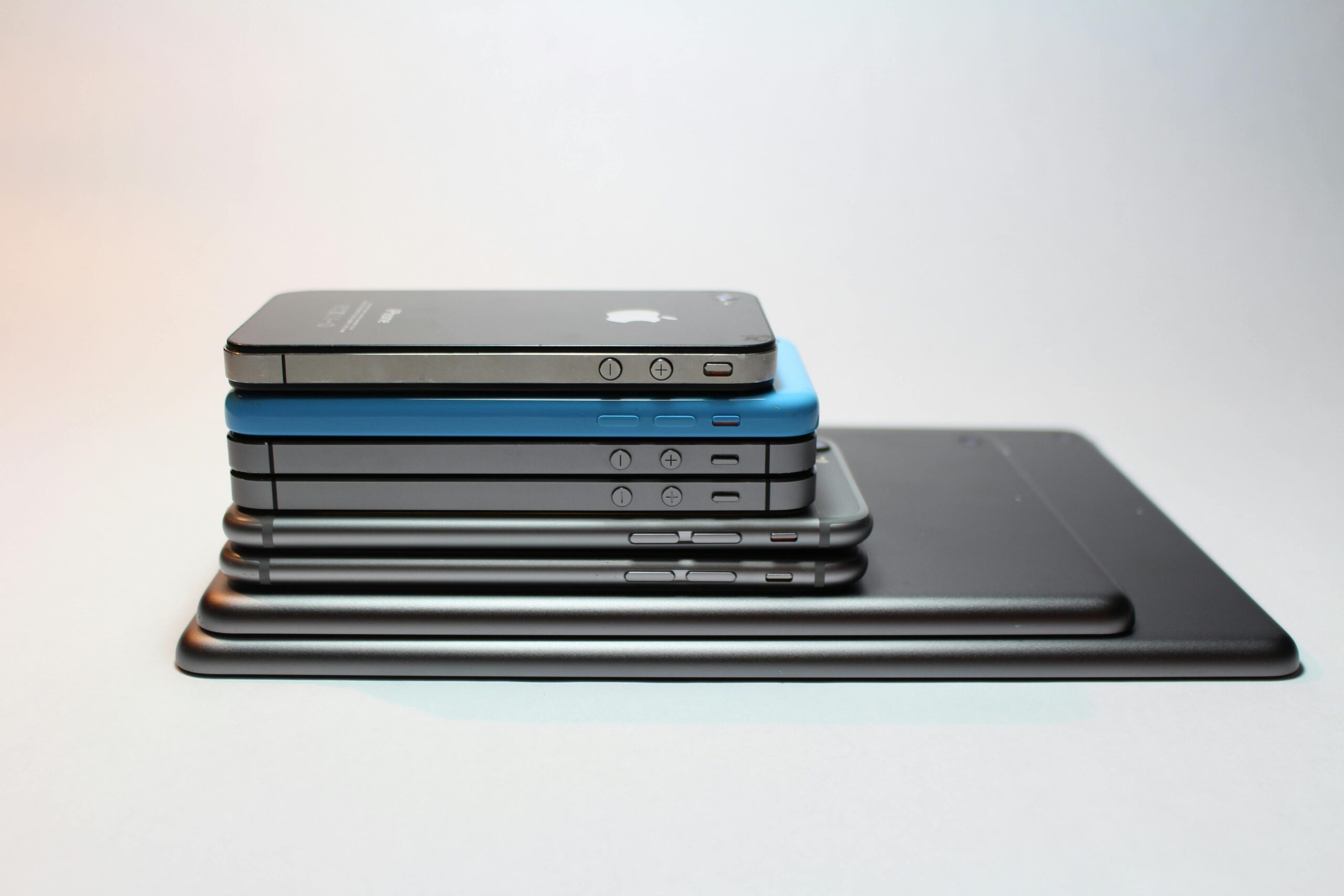
Apple’s iPhone continues to be one of the most popular smartphones worldwide, offering high performance, advanced security, and seamless integration with Apple’s ecosystem. However, even the latest iPhones can sometimes feel slow, have battery issues, or be vulnerable to security risks if not optimized properly.
In 2025, maximizing your iPhone’s speed, battery life, and security requires understanding hidden settings, smart usage habits, and built-in iOS features. This guide shares the best tips and tricks to get the most out of your iPhone.
Why Optimization Matters in 2025
Modern iPhones handle demanding tasks like:
- Gaming with advanced graphics
- Video streaming in 4K or HDR
- AI-powered apps and augmented reality (AR)
- Multitasking between apps
- Smart home control and automation
Even with powerful hardware, iPhones can experience slowdowns, battery drain, and minor security vulnerabilities if users neglect system optimization and settings adjustments.
Speed Optimization Tips
1. Keep iOS and Apps Updated
Updates often include performance improvements, bug fixes, and security patches.
Tips:
- Settings → General → Software Update → Enable Automatic Updates
- Update apps through the App Store regularly
- Delete apps no longer supported
Benefit: Ensures smooth performance and reduces crashes.
2. Clear Safari Cache and Unused Data
Over time, browser cache, cookies, and history can slow your device.
How to clear cache:
- Settings → Safari → Clear History and Website Data
Benefit: Frees storage, reduces lag, and improves browser performance.
3. Restart or Force Restart Your iPhone
Restarting clears temporary files and refreshes RAM.
Tips:
- Soft restart: Power off and on
- Force restart: Volume Up → Volume Down → Hold Power button (for modern iPhones)
Benefit: Fixes minor lags and improves responsiveness.
4. Limit Background App Refresh
Apps refreshing in the background consume resources.
How to manage:
- Settings → General → Background App Refresh → Select Wi-Fi, Wi-Fi & Cellular, or Off
- Turn off for apps that don’t require constant updates
Benefit: Frees memory and improves speed.
5. Reduce Motion and Animations
iOS uses animations for smooth transitions, which can slow older devices.
How to enable:
- Settings → Accessibility → Motion → Reduce Motion → Enable
Benefit: Makes your iPhone feel faster with snappier navigation.
6. Offload Unused Apps
iOS allows you to remove apps without deleting data.
How to use:
- Settings → General → iPhone Storage → Offload Unused Apps
Benefit: Frees storage while retaining app data for later use.
7. Manage Widgets and Home Screen Layout
Too many widgets and heavy animations can slow navigation.
Tips:
- Keep essential widgets only
- Use static wallpapers instead of live ones
- Reduce clutter for faster home screen performance
Benefit: Enhances speed and usability.
Battery Optimization Tips
1. Enable Low Power Mode
Low Power Mode reduces background activity to extend battery life.
How to enable:
- Settings → Battery → Low Power Mode
- Can also be toggled in Control Center
Benefit: Prolongs battery during travel or heavy usage.
2. Use Optimized Battery Charging
iOS optimizes charging to slow battery aging.
How to enable:
- Settings → Battery → Battery Health → Optimized Battery Charging → Enable
Benefit: Extends battery lifespan and reduces overheating.
3. Adjust Screen Brightness and Auto-Lock
The display is a major battery drain.
Tips:
- Reduce brightness manually or enable Auto-Brightness
- Settings → Display & Brightness → Auto-Lock → Set to 30–60 seconds
Benefit: Conserves power without sacrificing usability.
4. Limit Location Services
Location tracking consumes battery.
Tips:
- Settings → Privacy → Location Services → Enable “While Using the App”
- Disable location access for non-essential apps
Benefit: Reduces power consumption and enhances privacy.
5. Manage Push Notifications
Notifications wake the device and drain battery.
Tips:
- Settings → Notifications → Select apps → Disable non-essential alerts
- Use Focus mode during work or sleep
Benefit: Saves battery and reduces distractions.
6. Enable Dark Mode
Dark Mode reduces power consumption on OLED iPhones.
How to enable:
- Settings → Display & Brightness → Dark
Benefit: Extends battery life during prolonged screen use.
7. Minimize Background Activities
- Close unused apps
- Turn off automatic downloads for apps, music, or updates
- Reduce background sync for email and cloud services
Benefit: Conserves battery while maintaining essential functionality.
Security Optimization Tips
1. Enable Face ID or Touch ID
Biometric authentication adds extra security.
How to enable:
- Settings → Face ID & Passcode / Touch ID & Passcode → Set up
Benefit: Protects device and sensitive data from unauthorized access.
2. Use a Strong Passcode
Longer alphanumeric passcodes are more secure than 4-digit PINs.
How to set:
- Settings → Face ID & Passcode → Change Passcode → Custom Alphanumeric Code
Benefit: Makes it harder for hackers to access your iPhone.
3. Enable Two-Factor Authentication (2FA)
2FA adds an additional security layer for Apple ID and apps.
How to enable:
- Settings → [Your Name] → Password & Security → Two-Factor Authentication
Benefit: Protects accounts even if your password is compromised.
4. Use Find My iPhone
Find My iPhone helps locate lost devices and remotely erase data.
How to enable:
- Settings → [Your Name] → Find My → Find My iPhone → Enable
Benefit: Prevents unauthorized access and helps recover lost devices.
5. Limit App Permissions
Apps can request unnecessary access to data.
Tips:
- Settings → Privacy → Review permissions for Camera, Microphone, Contacts, etc.
- Deny access for non-essential apps
Benefit: Enhances privacy and reduces risk of data leaks.
6. Avoid Public Wi-Fi Risks
Public networks can be vulnerable to attacks.
Tips:
- Use a trusted VPN when connecting to public Wi-Fi
- Avoid sensitive transactions on unsecured networks
Benefit: Protects personal information from hackers.
7. Enable Automatic Updates
Regular updates patch security vulnerabilities.
How to enable:
- Settings → General → Software Update → Automatic Updates → Enable
Benefit: Keeps your device protected without manual intervention.
8. Use Secure Browsing
Safari offers features to protect your privacy online.
Tips:
- Enable Prevent Cross-Site Tracking
- Use Fraudulent Website Warning
- Clear cookies and cache regularly
Benefit: Reduces exposure to phishing and malware.
9. Backup Data Regularly
Backups ensure recovery in case of theft or data loss.
Options:
- iCloud backup → Settings → [Your Name] → iCloud → iCloud Backup → Enable
- Local backup via iTunes
Benefit: Protects photos, contacts, and app data.
10. Enable Lockdown Mode (iOS 16+)
Lockdown Mode protects against advanced cyberattacks.
How to enable:
- Settings → Privacy & Security → Lockdown Mode → Turn On
Benefit: Secures device against spyware and sophisticated attacks.
Additional Tips for Power Users
- Siri Shortcuts: Automate repetitive tasks like sending messages, setting reminders, or controlling smart devices.
- Focus Modes: Customize work, sleep, and personal modes to manage notifications.
- App Library & Widgets: Organize apps efficiently for faster access.
- Battery Health Monitoring: Replace degraded batteries to maintain performance.
- Storage Management: Offload unused apps and media to iCloud to free space and boost speed.
Conclusion
Optimizing your iPhone in 2025 is about smart usage, hidden features, and regular maintenance. By applying these tips and tricks, you can boost speed, extend battery life, and enhance security, ensuring your device performs at its best.
Key Takeaways:
- Keep iOS and apps updated for speed and security
- Manage background apps, widgets, and notifications
- Optimize battery settings with Low Power Mode, Dark Mode, and Adaptive features
- Enable Face ID, 2FA, and Lockdown Mode for advanced security
- Backup data and manage storage regularly
Implementing these strategies transforms your iPhone into a fast, secure, and reliable tool for everyday life in 2025.